How to Get Back Deleted Photos on iPhone and Android?
A deleted photo can feel like a small loss until you need it: a child’s birthday, a travel receipt, or one sharp image of someone you miss. If you’re searching for How To Get Back Deleted Photos, start with the phone’s built-in recovery options. On iPhone, check Recently Deleted in Photos and review any available iCloud or computer backups. On Android, look in your gallery app’s trash or Google Photos’ trash, then check backups linked to the account you used when the picture was saved. The exact menus and retention periods vary by device, app, and settings.
Act carefully. If the picture is missing, avoid taking many new photos or installing recovery apps on the same phone until you’ve checked your backups. New data may reduce recovery chances, and modern phones often encrypt storage, so no tool can promise success. There is no magic button. Some guides make recovery sound certain; it isn’t. A photo may be permanently gone if it was removed from the trash and no backup exists. Still, checking each location methodically can save time and prevent an avoidable mistake. This guide explains practical steps for iPhone and Android, what to verify before restoring a backup, and when a recovery claim deserves skepticism. It also separates safe, built-in options from tools that ask for broad access to personal files. Read the steps for your device, and pause before anything that could overwrite data.
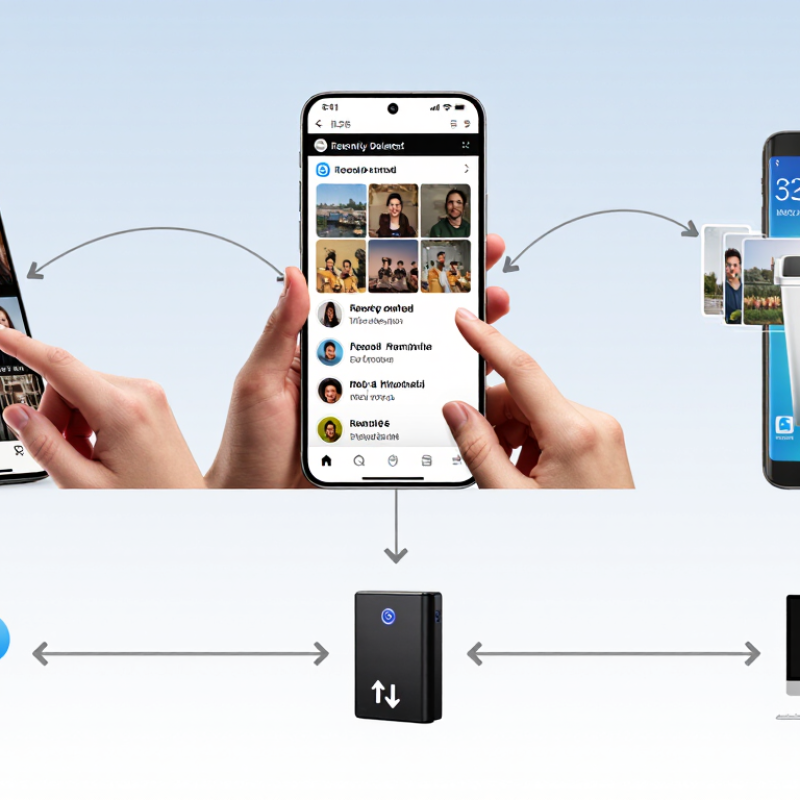
How Photo Deletion and Recovery Work on iPhone and Android
Photo deletion is usually a staged process, not an instant wipe. On many phones, a deleted picture first moves to a recently deleted or trash folder. It may stay there for a limited period, often around 30 days, though the exact time depends on the device and app. Check that folder before trying recovery tools.
Cloud syncing can complicate things. If a photo library syncs across devices, deleting an image in one place may remove it elsewhere too. A separate computer or cloud backup may still contain a copy, but only if it was made before deletion. That distinction is easy to miss. Check dates and account settings carefully.
After a photo leaves the trash, recovery becomes less certain. Phones manage storage differently, and encryption and cleanup processes can make old files inaccessible. New photos, downloads, and app updates may also reuse available space. Stop using the phone if the image matters, and avoid installing recovery apps on it. Results vary. Some tools promise more than they can deliver, so verify their claims and protect your account details. In practice, checking backups early is often more useful than assuming deleted files remain recoverable.
Restore Photos from iCloud, Google Photos, or Other Cloud Backups
When a photo disappears, check the cloud photo library linked to your phone before restoring a full device backup. Open its recently deleted or trash folder and look for the image by date. Check there first. Deleted items may remain available only for a limited time, and that period varies by service. If you use more than one account, confirm the correct one is signed in.
Cloud libraries and device backups work differently. A synced photo may not be included in a separate phone backup, because syncing changes can carry across devices. A full backup may contain older photos, but restoring it can replace newer data. Read the restore date and backup contents carefully before proceeding. If possible, save current files elsewhere first. It is a small precaution, but an easy one to forget.
On an iPhone or Android phone, use the cloud service’s own recovery instructions; menu names and options can change. Check the library from a browser or another trusted device too. Sometimes an image appears there but not on the phone yet. If it is missing from trash and no suitable backup exists, recovery may not be possible. That is frustrating, and cloud storage is not a perfect safety net. Keep automatic syncing enabled, review backup status occasionally, and maintain a separate copy of important photos.
Recover Photos from Device Backups or Recovery Software
Before using recovery software, check the phone’s Recently Deleted folder and any cloud or computer backups. Deleted photos may remain there temporarily, but retention periods vary by device and app. A backup can restore an earlier library; however, restoring it may replace newer data. Check its date and contents first.
If no usable backup exists, stop taking photos and installing apps on the phone. New data can overwrite recoverable file fragments, especially on modern storage. Choose reputable recovery software, connect the device as instructed, and preview results before saving them elsewhere. Recovery is not guaranteed. The 2024 Data Breach Investigations Report analyzed 30,458 security incidents; it is not a photo-loss study, but it underscores why keeping separate copies of important data matters.
Tips: Back up photos regularly to two separate locations. Keep one copy offline, such as on an external drive. Test that a few images open. I sometimes skip this check—and regret it when a backup turns out incomplete.
How to Get Back Deleted Photos on iPhone and Android? — Recover Photos from Device Backups or Recovery Software
| Recovery Method | Where to Check | What to Do | Important Limitations |
| Recently deleted photos on iPhone | The Photos app’s Recently Deleted album | Select the photos you want and choose the restore option. Act promptly; deleted items are generally kept for up to 30 days. | Items permanently deleted from this album usually cannot be restored from it. |
| Trash or recycle folder on Android | The gallery app or photo-storage service used on the device | Open its trash or bin, select the pictures, and restore them before the items expire. | Retention periods and folder names vary by app and service. Some items may be deleted permanently sooner. |
| Cloud photo library | The photo library and its deleted-items folder, using the same account and sync settings | Check the online library and its trash folder. Restore the photos if they are still available there. | With photo syncing enabled, deleting a photo on one device may also delete it from the synced library and other devices. |
| Device or computer backup | A backup made before the photos were deleted | Confirm the backup date and contents, then follow the device’s restore process. Save current data first when possible. | Restoring a full-device backup may replace newer data. Photos stored in a separately synced library may not be included in the device backup. |
| Recovery software | A reputable recovery tool that explicitly supports the device and recovery source | Stop taking photos or saving files to the device. Check whether the tool can examine an existing backup before attempting a device scan. | Modern devices use encryption and storage cleanup that can make direct recovery difficult or impossible. Results are not guaranteed; avoid tools that require unnecessary access to personal data. |
| Another saved copy | Shared conversations, email attachments, exported folders, or other devices | Search for copies that were sent, downloaded, exported, or saved before deletion. | The recovered copy may have a lower resolution or may not include edits and original metadata. |
Tip: Start with the recently deleted folder and existing backups. The sooner you stop using a device after deletion, the lower the risk that new data will overwrite recoverable information.
Protect Your Photos with Regular Backups and Syncing
Deleted photos are easier to recover when another copy exists. Set your phone to back up photos automatically over Wi-Fi, and check that uploads finish before turning the phone off. A spinning progress symbol is not proof that every image has arrived. Open the backup service occasionally and look for a recent picture you recognize. Small checks catch failed uploads early.
Syncing is useful, but it is not always a backup. If you delete a photo on one device, the change may sync everywhere. Keep a separate copy on a computer or external drive, and update it regularly. Before deleting anything, confirm that the files open from that copy. Also check your phone’s recently deleted folder; items may stay there only for a limited time. Settings and retention periods vary, so read the current guidance for your device. It is easy to assume the cloud has everything. Sometimes it does not. Backup habits are dull, but a little routine can save a whole folder of family pictures.